


edgeRX™ Starter is designed to make industrial machine health monitoring simple, fast, and accessible. With a fully preconfigured, low touch setup, customers can deploy a monitoring system using edge AI in minutes—without the need for field application engineering (FAE) support or specialized expertise. From installation to insight, edgeRX™ Starter removes traditional barriers so teams can focus on improving reliability and uptime, not system complexity.
What You’ll Accomplish on This Page
This page is your step-by-step guide to deploying and using edgeRX™ Starter. By following the sections below, you will:
- Understand the self-install, low-touch deployment process
- Download gateway and sensor datasheets for reference
- Learn where and how to install sensors and the gateway
- Navigate and use the edgeRX™ Platform effectively
- Access tutorial videos, FAQs, and troubleshooting guidance
- Know how to contact support and where to find key legal documentation
By the end, you’ll be fully equipped to install edgeRX™ Starter and begin capturing high-resolution machine health insights—quickly, securely, and with confidence.
Datasheets
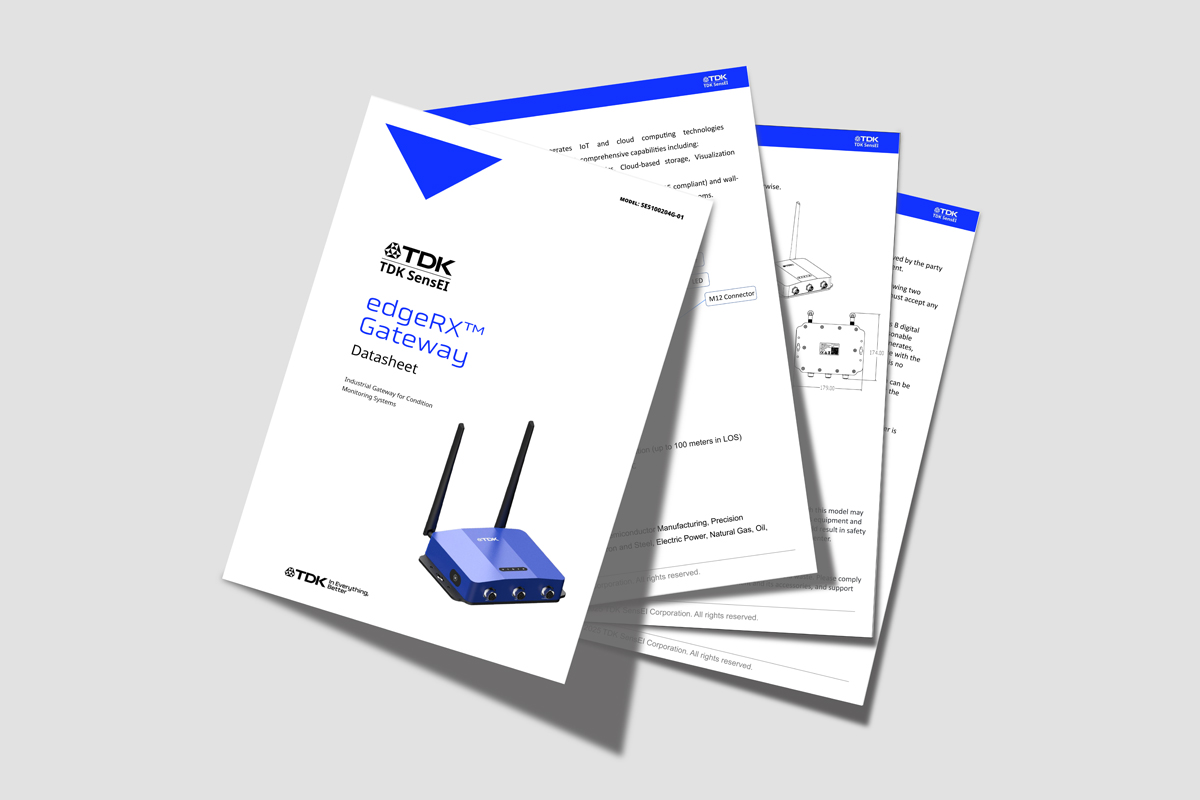
Click the links below to download the datasheets for the edgeRX™ LYNQ and edgeRX™ Gateway, which outline key features, technical specifications, and intended use to support evaluation and integration.
edgeRX™ Gateway
edgeRX™ LYNQ
Installation User Guides
For step‑by‑step setup instructions and detailed installation requirements, click the link below to download the Installation User Guide. This guide walks you through the complete installation process, including prerequisites, configuration steps, and best practices to ensure a successful and efficient setup. It is the primary reference for preparing, installing, and verifying proper system operation.
edgeRX™ Starter
Platform User Guide
For guidance on using and navigating the edgeRX™ Platform, click the link below to download the Platform User Guide. This guide provides an overview of the platform interface, core features, and available tools, along with instructions for accessing data, managing settings, and monitoring system activity. It serves as the primary reference for understanding platform functionality and getting the most out of the edgeRX™ Platform during day‑to‑day use.
edgeRX™ Platform
Tutorial Videos
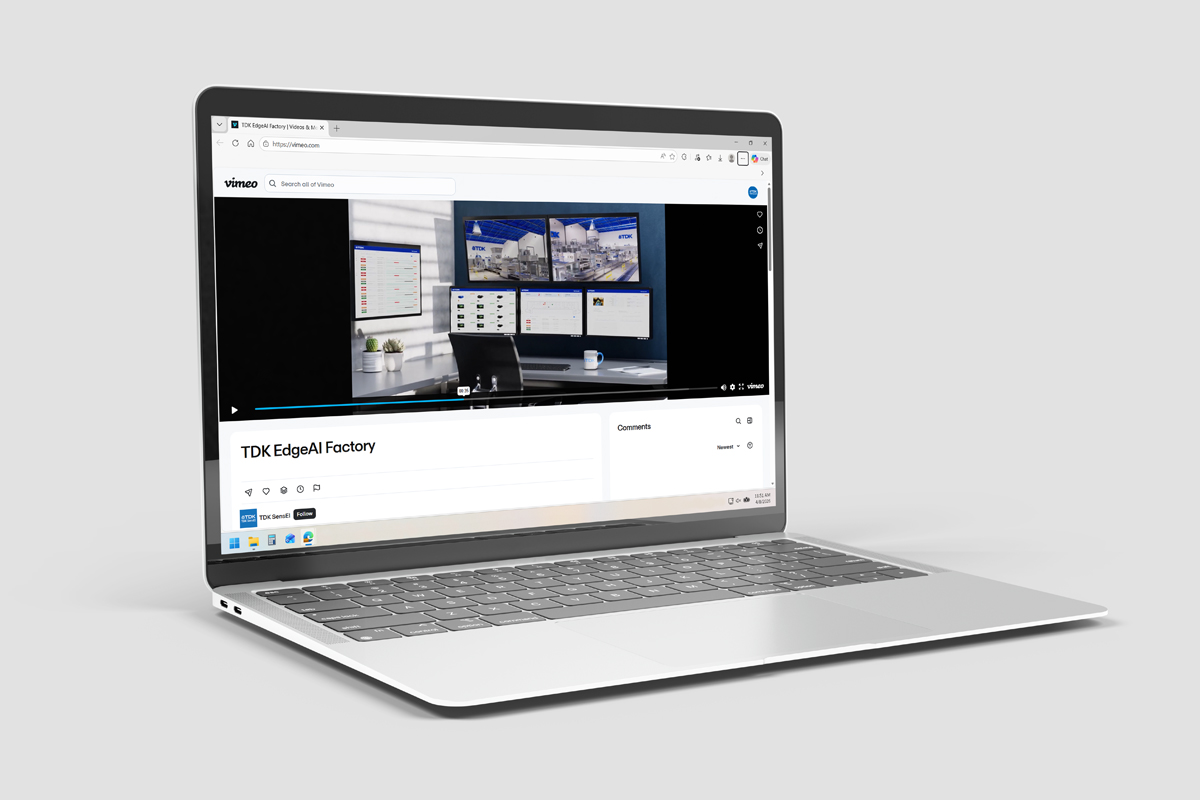
Click the link below for clear, step-by-step guidance on getting the most out of edgeRX™. You’ll learn how to set up your account quickly, navigate the platform with confidence, and use key features to streamline your day-to-day workflow. Whether you’re a first-time user or just need a refresher, these resources are designed to help you work more efficiently and take full advantage of everything edgeRX™ has to offer.
NOTE
If problems persist with playing the video, try to refresh the page, deactivate ad-blockers, try in a private browsing window, or attempt with a different browser.
FAQs + Troubleshooting
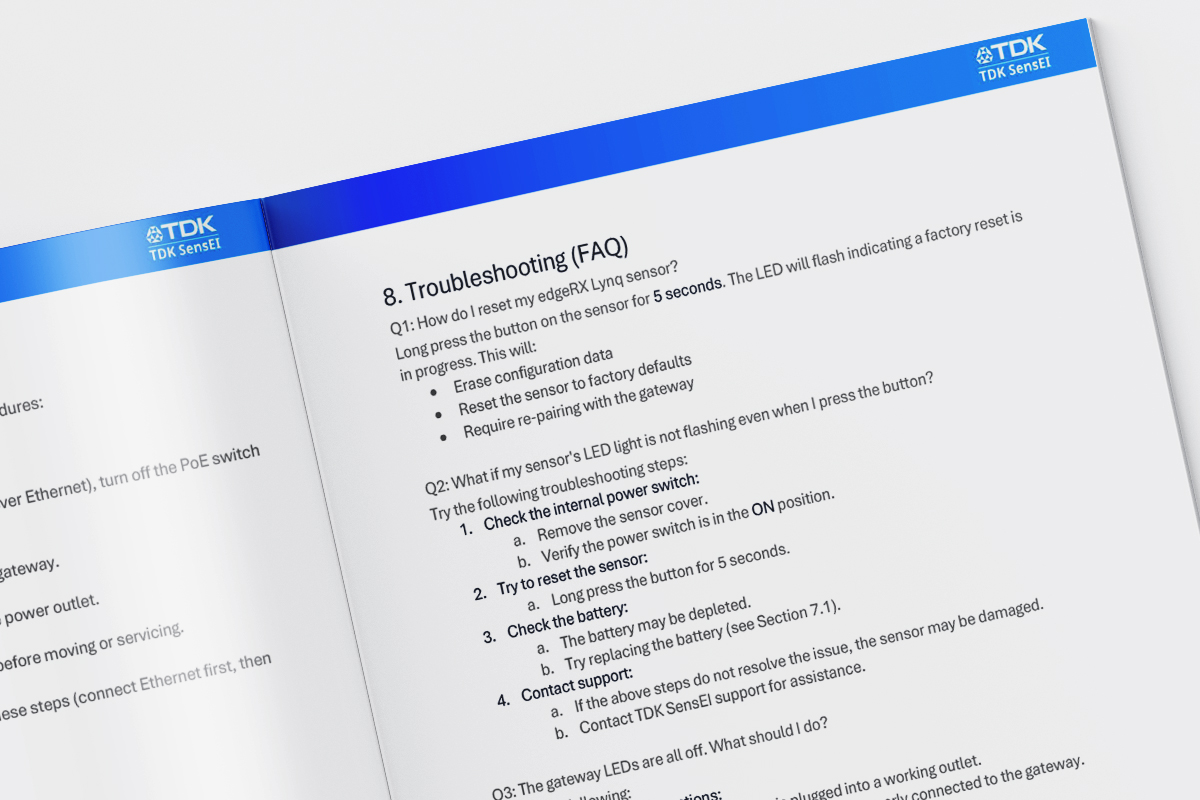
Detailed troubleshooting steps and answers to frequently asked questions are available in the Installation User Guide and the Platform User Guide. These resources provide comprehensive guidance on setup, configuration, and common operational issues, helping users quickly diagnose and resolve problems. The guides also include best practices, step‑by‑step instructions, and clarifications on expected system behavior, making them the primary reference points for both initial use and ongoing support.
edgeRX™ Starter
edgeRX™ Platform
Support + Legal
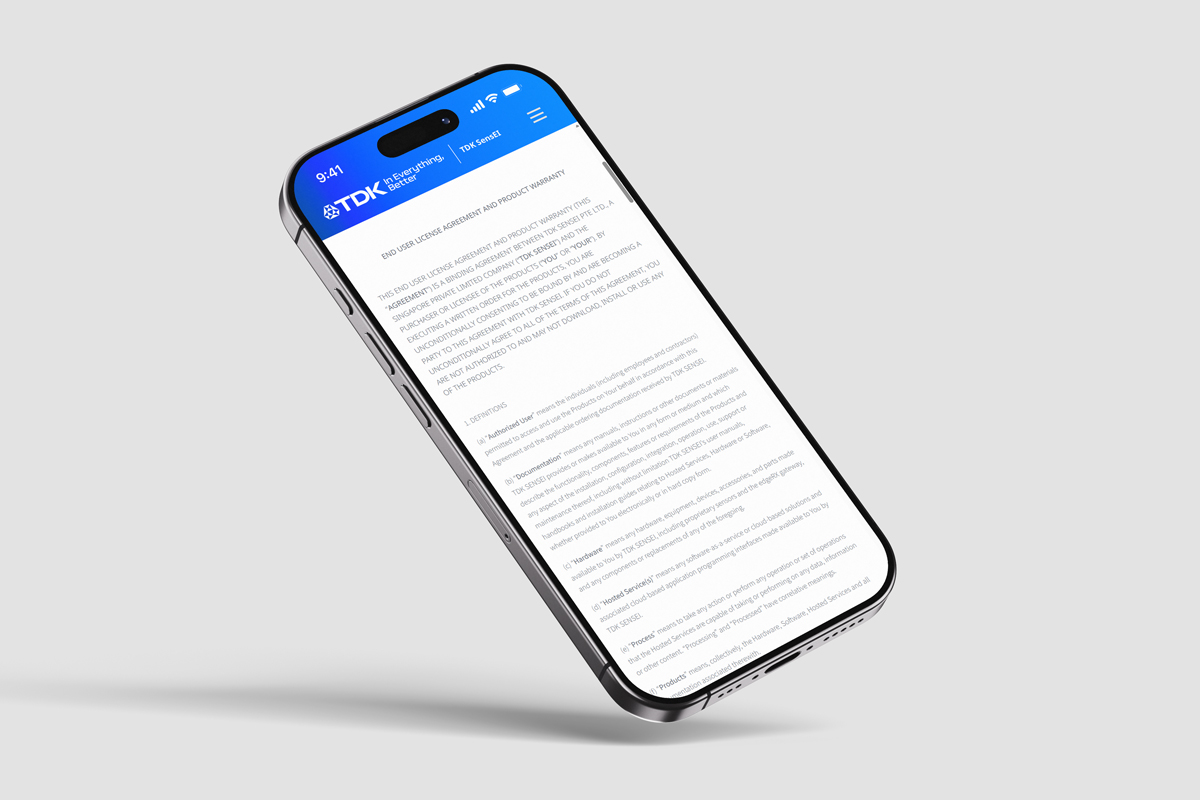
For additional support and authoritative guidance, please refer to the supplied links, which include resources for legal information, rights, and available assistance—as they offer essential context, clarify legal obligations, and outline options for obtaining further help if needed.
- Support contact email: sensei.support@tdk.com
- Software User License Agreement (SULA) web page
